- Part 1: Introduction
- Read about the program.
Part 2: Blogging - Set up your own blog & add your first post
- Learn about how the NVDPL staff blog works
Part 3: Photos & Images - Explore Flickr and learn about this popular image hosting site.
- Have some Flickr fun and discover some Flickr mashups & 3rd party sites.
Part 4: RSS & Newsreaders - Learn about RSS feeds and setup your own Google Reader or Bloglines account.
- Locate a few useful library related blogs and/or news feeds.
Part 5: Play Stations - Play around with an online image generator.
- Take a look at LibraryThing and catalog some of your favorite books.
Part 6: Tagging, Technorati, and Social Networking - Learn about tagging and discover Del.icio.us (a social bookmaking site)
- Explore Technorati and learn how tags work with blog posts.
- Learn about social networking.
- Read a few perspectives on Web 2.0, Library 2.0 and the future of libraries and blog your thoughts.
Part 7: Wikis - Learn about wikis and discover some innovative ways that libraries are using them.
- Add an entry to the NVDPL SandBox wiki.
Part 8: NVDPL Applications & Tools - Review some email best practices
- Learn about what you can do with shared calendars in Microsoft Outlook
- Find out what's new with Office 2007
- Explore some of NVDPL's subscription databases
- Learn about BC's Askaway chat reference service.
Part 9: Podcasts, Video & Downloadable audio & ebooks - Discover YouTube and a few sites that allow users to upload and share videos.
- Discover some useful search tools for locating podcasts.
- Take a look at the titles available on Overdrive and learn how to download audiobooks and e-books.
- Summarize your thoughts about this program on your blog.
Monday, May 12, 2008
The Agenda
Learning 2.0 Things


Friday, March 28, 2008
About the Learning 2.0 Project
This blog has been set-up as part of the NVDPL Learning 2.0 project to enable regular staff to experiment and learn about the new and emerging technologies that are reshaping the context of information on the Internet today. The term Web 2.0 refers simply to this collection of technologies, such as blogging and image posting software, which allow individuals quickly and easily to add content to the world wide web. NVDPL staff modified The Learning 2.0 program designed by Helene Blowers, the Technology Director at the Public Library of Charlotte & Mecklenburg County. Much of the content of our program is directly borrowed, with permission, from the original.
The design of this online program was completely built on Web 2.0 technologies that are freely available on the Internet. These sites include: Blogger, Flickr, Odeo, YouTube, PBWiki & Bloglines.
Frequently Asked Questions:
The design of this online program was completely built on Web 2.0 technologies that are freely available on the Internet. These sites include: Blogger, Flickr, Odeo, YouTube, PBWiki & Bloglines.
Frequently Asked Questions:
- How does this online learning program work?
This is a self-discovery program which enables regular staff to enjoy themselves as they work through exercises at their own pace. There will be no classes or workshops offered to support this program. Instead, staff are encouraged to work together and share with each other their discoveries, techniques and "how to's" both in person and through their blogs. Staff will be alloted enough time to work through each exercise they are required, or choose, to do. - Is this program intended for all NVDPL staff or just some?
This program is intended for regular NVDPL staff (excluding pages) regardless of position and status (full and part time). If you are an auxiliary staff member, or not a member of the NVDPL staff, you are welcome to follow along, however the library cannot award you any staff prizes for completion. Information staff will be required to complete all the exercises, save for the extra optional exercises included in some of the entries. All other regular staff will be required to complete exercises 2,3,16,17,18,19,20 (extra optional exercises again not required). Those of you who are not information staff are encouraged, however, to work through all the exercises if you desire to do so, and of course in that case you would be eligible for the completion prize of an MP3 player. - How long do I have to complete the program?
The program kicks off June 9th. We hope you will have completed your exercises by the end of the year, but you can take more time if you require it. You are expected to work on an exercise every two weeks with the complete support of your manager. You may work ahead of course! - How do I track my progress for each of the 24 Things?
Participants will be required to keep a blog to track their progress. - What accounts will I need to set up to participate?
You will need to sign up for a blog, an RSS reader, and a LibraryThing account. You will also need an account for the NVDPL shared staff blog.
If you blog with Blogger, and use Google Reader as your RSS reader, you will only need to sign up for one account for the two of them as both are owned by Google. If you choose to participate in optional bonus exercises, you might also create accounts at Flickr, Facebook or del.icio.us. - Will there be any training classes offered to show staff how to do this?
No, this is a self-directed learning program. If you feel you need assistance with an item, you are encouraged to work with colleagues or find a co-worker who can help. Reading other staff members' blogs can help too. If you're really stuck, contact one of the trainers for assistance: Claire Westlake at the Capilano Branch; Jacqui Jones Cox at Lynn Valley; and Paul Taylor at Parkgate. - I don't feel comfortable with my co-workers reading my blog, can I participate anonymously?
Since you control all the information that you share on your blog, you can choose to use a screen name to identify yourself to keep yourself anonymous. As soon as you set up your blog, please email your branch trainer to let them know the name and URL (web site address) of your blog. If you do not wish your blog to be included in the NVDPL Playground list of participants, please let your trainer know and they will exclude your blog from this list.
Wednesday, March 5, 2008
Is this really the end? Or just the beginning ...
Listen to this podcast [1:17]-->
powered by ODEO
 Wow! Congratulations!! You’ve reached the final thing. Be sure to give yourself a pat on the back for completing the program. Before sending off your reward to you, I ask for one last discovery post.
For your last and final exercise for this program please reflect on your learning journey and post a few thoughts. Here are some questions to prompt you if you're drawing a blank ...
In closing, we want to thank each and every one of you for joining us on this journey. Our hope is that this not the end of our learning journey together as a staff and a system, but rather it’s just the start of something amazing …
Wow! Congratulations!! You’ve reached the final thing. Be sure to give yourself a pat on the back for completing the program. Before sending off your reward to you, I ask for one last discovery post.For your last and final exercise for this program please reflect on your learning journey and post a few thoughts. Here are some questions to prompt you if you're drawing a blank ...
- What were your favorite discoveries or exercises on this learning journey?
- How has this program assisted or affected your lifelong learning goals?
- Were there any take-aways or unexpected outcomes from this program that surprised you?
- What could we do differently to improve upon this program’s format or concept?
And last but not least… - If we offered another discovery program like this in the future, would you again chose to participate?
In closing, we want to thank each and every one of you for joining us on this journey. Our hope is that this not the end of our learning journey together as a staff and a system, but rather it’s just the start of something amazing …
Tuesday, March 4, 2008
NVDPL List of Participants
Listed below are the registered participants for the Learning 2.0 program. For the purposes of this program, only the blog's names will be listed here. Staff may choose to reveal or conceal their identity themselves as they wish through their blogs.
Jacqui's Page
Alison Has A Blog
Digital Dinosaur
Browsing the Stacks
Dagmar's Doings
Blogger Bug
Fascinating Tales of a Strange Tomorrow
liebes-spiel
Mr.Darcy's Diary
How does your garden grow?
Vickiboo
Cap Orphan
Shakespeare's No. 1 Fan
Lisa 2.0
Lululibrarian Learning
Autuas
Poppy's Page
Nellies Natterings
Earth2
library lass
Menno Girl Does Marketing
Goldie
Sperkle
Moving Pixels
el's nvdpl playground
Cap Chats
the pond
Whatever
My Meadow
Hamish's Mum is a Luddite
Karenj's
Drawing of Sound
Alison Campbell's Blog
Dream Discovery
Snow (Parvin's Blog)
Garden of Delights
Tethys of Saturn
Spink's Spot
FaffingAround
chezgerry
Ramblings of a Wannabe Librarian
The Graeme's temporary blog name
What I want to know
der Ausbilder Pargatter
Lovely Library Lady
Adventure Lena
Bookbullies
Hillbilly Chick
Frankie
candl
Hornbat, Spudicombe and Twink
Another Alison
Daydreamer
Dehydra's Lair
Moira's Blog
Rachel's Rants
Glob-Fa
booklover grrl
marianne's blog
frankie
jonesee's blog
Bette's test site
What I had for Lunch Today
LibraryTech.ca
Holly Pocket's Fantastic Blog Rocket
Bowen Idle
Jacqui's Page
Alison Has A Blog
Digital Dinosaur
Browsing the Stacks
Dagmar's Doings
Blogger Bug
Fascinating Tales of a Strange Tomorrow
liebes-spiel
Mr.Darcy's Diary
How does your garden grow?
Vickiboo
Cap Orphan
Shakespeare's No. 1 Fan
Lisa 2.0
Lululibrarian Learning
Autuas
Poppy's Page
Nellies Natterings
Earth2
library lass
Menno Girl Does Marketing
Goldie
Sperkle
Moving Pixels
el's nvdpl playground
Cap Chats
the pond
Whatever
My Meadow
Hamish's Mum is a Luddite
Karenj's
Drawing of Sound
Alison Campbell's Blog
Dream Discovery
Snow (Parvin's Blog)
Garden of Delights
Tethys of Saturn
Spink's Spot
FaffingAround
chezgerry
Ramblings of a Wannabe Librarian
The Graeme's temporary blog name
What I want to know
der Ausbilder Pargatter
Lovely Library Lady
Adventure Lena
Bookbullies
Hillbilly Chick
Frankie
candl
Hornbat, Spudicombe and Twink
Another Alison
Daydreamer
Dehydra's Lair
Moira's Blog
Rachel's Rants
Glob-Fa
booklover grrl
marianne's blog
frankie
jonesee's blog
Bette's test site
What I had for Lunch Today
LibraryTech.ca
Holly Pocket's Fantastic Blog Rocket
Bowen Idle
#23 Audiobooks and eBooks
Now that you've made it this far, it’s time to take a look around Overdrive, the provider of our Library to Go e-Media resource. Library to Go features downloadable audiobooks and eBooks, and is available to everyone with a library card from a BC public library. You can check out a maximum of 5 titles at a time for 14 days each.
For this discovery exercise, you just need to familiarize yourself a bit with the structure of the Library to Go website and get an idea of the types of titles you can find here. Take a look around and locate a few titles of interest. Note that some titles are always available, while others are only available for a limited time.
While Library to Go is a subscription service, there are also free audiobooks and eBooks legally available to download. Librivox recruits volunteers to record books that are in the public domain, while Project Gutenberg has a huge catalogue of public domain books, historical documents, and even sheet music.
Discovery Resources:
Overdrive's Digital Media Guided Tour may take you 15 - 20 minutes to view, and will walk you through the steps to download audiobooks and burn them to a CD.
Discovery Exercise:
OPTIONAL: Try downloading a title from Library to Go or Librivox. You don’t have to have a portable player to listen to audiobooks, as you can also listen to it from a computer.
For this discovery exercise, you just need to familiarize yourself a bit with the structure of the Library to Go website and get an idea of the types of titles you can find here. Take a look around and locate a few titles of interest. Note that some titles are always available, while others are only available for a limited time.
While Library to Go is a subscription service, there are also free audiobooks and eBooks legally available to download. Librivox recruits volunteers to record books that are in the public domain, while Project Gutenberg has a huge catalogue of public domain books, historical documents, and even sheet music.
Discovery Resources:
Overdrive's Digital Media Guided Tour may take you 15 - 20 minutes to view, and will walk you through the steps to download audiobooks and burn them to a CD.
Discovery Exercise:
- Browse the audio and eBook titles available through Library to Go.
- Take a glance at the Librivox catalogue of audiobooks, currently offering over 1300 titles.
- Create a blog post about your impressions and findings. Did you locate a title that you might want to try downloading?
OPTIONAL: Try downloading a title from Library to Go or Librivox. You don’t have to have a portable player to listen to audiobooks, as you can also listen to it from a computer.
#22 Podcasts, Smodcasts!
Listen to this podcast [2:17]-->
powered by ODEO
The word podcast is used to refer to a non-musical audio or video broadcast that is distributed over the Internet. What differentiates a podcast from regular streaming audio or video is that the delivery method for podcasts is often done automatically through RSS.
In 2005, "podcast" was named the "word of the year" by New Oxford American Dictionary and with the growth of podcasting over the last 24 months, it's easy to see why.
Podcasts take many forms, from short 1-10 minutes commentaries (like the ones used in this Learning 2.0 program) to much longer in person interviews or panel group discussions. There’s a podcast out there for just about every interest area and the best part about this technology is that you don’t have to have an iPod or a MP3 player to access them. Since podcasts use the MP3 file format, a popular compressed format for audio files, you really just need a PC (or portal device) with headphones or a speaker.
iTunes, the free downloadable application created by Apple is the directory finding service most associated with podcasts, but if you don’t have iTunes installed there are still plenty of options.
For this discovery exercise participants are asked to take a look at some popular podcast directory tools. Do some exploring on your own and locate a podcast that is of interest to you. Once found, you can easily pull the RSS feed into your Google Reader or Bloglines account as well, so that when new casts become available you’ll be automatically notified of their existence.
Discovery Resources:
Discovery Exercise:
The word podcast is used to refer to a non-musical audio or video broadcast that is distributed over the Internet. What differentiates a podcast from regular streaming audio or video is that the delivery method for podcasts is often done automatically through RSS.
In 2005, "podcast" was named the "word of the year" by New Oxford American Dictionary and with the growth of podcasting over the last 24 months, it's easy to see why.
Podcasts take many forms, from short 1-10 minutes commentaries (like the ones used in this Learning 2.0 program) to much longer in person interviews or panel group discussions. There’s a podcast out there for just about every interest area and the best part about this technology is that you don’t have to have an iPod or a MP3 player to access them. Since podcasts use the MP3 file format, a popular compressed format for audio files, you really just need a PC (or portal device) with headphones or a speaker.
iTunes, the free downloadable application created by Apple is the directory finding service most associated with podcasts, but if you don’t have iTunes installed there are still plenty of options.
For this discovery exercise participants are asked to take a look at some popular podcast directory tools. Do some exploring on your own and locate a podcast that is of interest to you. Once found, you can easily pull the RSS feed into your Google Reader or Bloglines account as well, so that when new casts become available you’ll be automatically notified of their existence.
Discovery Resources:
- There are many, many podcast directories and finding tools out there. Here are just three of the more popular ones that, unlike iTunes, don't require a software download:
- What? You want to learn how to be a podcaster too?
(Optional Resources for those who want to learn create podcasts)- Odeo’s Studio – online recording studio.
- Beginner's guide to Podcasts & Creating Podcasts
- How to podcast tutorial
- Odeo’s Studio – online recording studio.
Discovery Exercise:
- Take a look at one or two of the podcast directories listed and see if you can find a podcast that interests you. See if you can find some interesting library related podcasts here like book review podcasts or library news.
- Add the RSS feed for a podcast to your Google Reader or Bloglines account
- Create a blog post about your discovery process. Did you find anything useful here?
#21 You too can YouTube
Within the past year online video hosting sites have proliferated allowing users to easily to upload and share videos on the web. Among all the web 2.0 players in this area, YouTube is currently the most popular with over 100 million video views a day and allowing users not only to upload their own video content easily, but also embed clips into their own sites easily.
Do some searching around YouTube yourself and see what the site has to offer. You'll find everything from 1970s TV to library dominos and parodies of library instructional videos. Of course, like any free site you’ll also find a lot stuff not worth watching too. But that doesn’t mean you shouldn’t explore and see for yourself what the site has too offer. :)
Discovery Exercise:
- Explore YouTube & find a video worth adding as an entry in your blog.
- Create a blog post about your experience. What did you like or dislike about the site and why did you choose the video that you did? Can you see any features or componets of the site that might be interesting if they were applied to library websites?
OPTIONAL: Try placing the video inside your blog using the copy and paste code for the for "Embeddable Player.” Note: you'll need to use Blogger's Edit HTML tab when pasting this code.
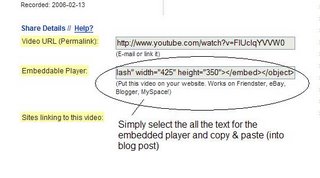
NOTE: Videos, like music downloads, are bandwidth hogs. It is recommended that you complete this exercise during light internet usage times.
#20 Askaway
Reference desks are no longer the only places where our patrons can ask our librarians questions.
NVDPL participates in Askaway, the online chat reference service supported by the Government of British Columbia and libraries across BC. Both public and academic libraries are involved in the program. Each library contributes a certain number of hours on a set schedule during which times their librarians monitor Askaway and answer questions.
Patrons select their library or academic institution before they ask a question so that they can be directed to either the public or academic librarians who are waiting online. The librarian who answers their question may be based anywhere in the province. Currently, public librarians are available Sunday through Thursday, from 10am-10 pm and Friday and Saturday 10am-5pm.
Discovery Resources:
Discovery Exercise:
NVDPL participates in Askaway, the online chat reference service supported by the Government of British Columbia and libraries across BC. Both public and academic libraries are involved in the program. Each library contributes a certain number of hours on a set schedule during which times their librarians monitor Askaway and answer questions.
Patrons select their library or academic institution before they ask a question so that they can be directed to either the public or academic librarians who are waiting online. The librarian who answers their question may be based anywhere in the province. Currently, public librarians are available Sunday through Thursday, from 10am-10 pm and Friday and Saturday 10am-5pm.
Discovery Resources:
Discovery Exercise:
- Go to Askaway, and ask a librarian a question. If you've been trained in Askaway, you've probably already done this, so skip to #2.
- Write a blog entry about your experience with online chat reference, either asking or answering questions. You might want to think about your perceptions about the program or software itself, or how you feel about this kind of online interaction.
#19 Databases
NVDPL subscribes to a number of databases where our patrons (and ourselves) can find newspaper articles, auto repair manuals, talking picture books, and suggestions for what to read next.
How many of these have you taken a look at yourself? This week we'd like you to explore a couple of databases that are new or unfamiliar to you.
Discovery Resource:
Discovery Exercise:
Bonus: Write a review of one of the databases and post it in the comments for this "thing."
How many of these have you taken a look at yourself? This week we'd like you to explore a couple of databases that are new or unfamiliar to you.
Discovery Resource:
Discovery Exercise:
- Read through the descriptions of the databases that we subscribe to.
- Choose two or three databases that are new or less familiar to you, and see what they have to offer. Try a few test searches, and see what you find.
- Write about your experience on your blog. You might want to think about how easy or difficult you found the database, whether you found what you were hoping to or not, or who you think the database might be useful for.
Bonus: Write a review of one of the databases and post it in the comments for this "thing."
#18 Office 2007
Microsoft Office 2007, which recently has been installed on the library's new computers, is the most recent version of the Microsoft Office system. Office 2007 contains a number of new features, most notably the new graphic interface. The Fluent User Interface replaces the system of menus and toolbars which has been the main element in previous Microsoft OS interfaces. For this discovery exercise, you will be asked to experiment with one or two Office 2007 applications.
Discovery Resources:
From Wikipedia:
Microsoft Office 2007 New Features
Changes to Microsoft Office Word
Changes to Microsoft Office Excel
From Microsoft:
Guides to the 2007 Office System User Interface
Microsoft Office Word Online Tutorials
Microsoft Office Outlook 2003 Tutorials (This is the version we are currently using. We will be upgrading to 2007 in the future. Hopefully by looking at 2003's capabilities the 2007 version will be an easy transition).
Microsoft Office Excel 2007 Tutorials
Microsoft Office Powerpoint 2007 Tutorials
Discovery Exercises
Try one or two applications you use frequently (word and outlook for example). Write a blog entry commenting on differences you encounter between the applications you've been used to using and their Office 2007 counterparts.
Discovery Resources:
From Wikipedia:
Microsoft Office 2007 New Features
Changes to Microsoft Office Word
Changes to Microsoft Office Excel
From Microsoft:
Guides to the 2007 Office System User Interface
Microsoft Office Word Online Tutorials
Microsoft Office Outlook 2003 Tutorials (This is the version we are currently using. We will be upgrading to 2007 in the future. Hopefully by looking at 2003's capabilities the 2007 version will be an easy transition).
Microsoft Office Excel 2007 Tutorials
Microsoft Office Powerpoint 2007 Tutorials
Discovery Exercises
Try one or two applications you use frequently (word and outlook for example). Write a blog entry commenting on differences you encounter between the applications you've been used to using and their Office 2007 counterparts.
#17 Shared Calendars in Microsoft Outlook
This session we're looking at the calendar feature on Microsoft Outlook. Many of us mark our own appointments on the Outlook calendar, but did you know that you can schedule meetings with other staff members? Calendars can also be shared between groups or individuals. NVDPL uses shared calendars to book rooms or equipment.
Read through the resources to pick up a few calendar pointers. Who knows; maybe you'll find yourself using the calendars more in the future!
This week's will tell you how to schedule meetings, how to accept or decline proposed meeting times, and how to view shared calendars.
Discovery Resources:
Discovery Exercise:
Read through the resources to pick up a few calendar pointers. Who knows; maybe you'll find yourself using the calendars more in the future!
This week's will tell you how to schedule meetings, how to accept or decline proposed meeting times, and how to view shared calendars.
Discovery Resources:
- From Microsoft Office Online:
- Schedule a meeting
- Respond to a meeting request or notification
- Open a shared exchange calendar
Discovery Exercise:
- Take a look at the discovery resources to learn how to schedule meetings, accept or decline proposed appointment times, and view shared calendars.
- Create a meeting and invite one of your co-workers. (Note that if your co-worker has not used his or her own Outlook calendar to schedule any appointments, their time will appear to be completely available).
- Open the booking calendar for the Lynn Valley board room. This calendar is called "Library LV Board Room." Take a look at when some of our committees will be busy around the table.
- Do you think you might use calendars more in the future? Write your reflections on your blog.
#16 Email best practices
Email comes with its own rules of etiquette and safety concerns. This week, we'd just like you to read about a few things to keep in mind when using your email.
First, take a look at email etiquette (or netiquette), to go over some basics to keep in mind when writing email. You probably already know not to write an email ENTIRELY IN UPPER CASE, but you might come across something else that you hadn't thought about.
Next, we'll take a look at the dark side of email, reading about phishing (email fraud), and how to avoid being scammed. If you're still nervous about good old-fashioned viruses, you'll want to read about email safety in Microsoft Outlook, the third article on the list. Remember, as a general rule, if you're in doubt of an email or an attachment, just don't open it.
Discovery Resources:
First, take a look at email etiquette (or netiquette), to go over some basics to keep in mind when writing email. You probably already know not to write an email ENTIRELY IN UPPER CASE, but you might come across something else that you hadn't thought about.
Next, we'll take a look at the dark side of email, reading about phishing (email fraud), and how to avoid being scammed. If you're still nervous about good old-fashioned viruses, you'll want to read about email safety in Microsoft Outlook, the third article on the list. Remember, as a general rule, if you're in doubt of an email or an attachment, just don't open it.
Discovery Resources:
- Email etiquette, an overview from Purdue University.
- All about Phishing; definition, common-sense pointers, and how-to-recognize phishing.
- Avoiding Viruses in Microsoft Outlook
- Read the articles listed above to learn more about the basics of email etiquette, phishing, and email safety in Microsoft Outlook. If you'd like to read a more thorough write-up on etiquette, try Yale University Library's discussion of email netiquette.
- Write a few reflections in your blog. Did you learn anything new? Did the etiquette articles mention any of your pet peeves?
#15 Playing around with PBWiki
"Sandbox" is the term that wikis often use to describe the area of the website that should be used for pure play. For this discovery and exploration exercise, we’ve set up our NVDPL Sandbox wiki* that’s for nothing but play!
For this “explore-and-play-with-wikis” exercise, you are asked to add an entry or two to the wiki. Simply leave a note to say you were there, add on to our list of places we've been or favourite books, or start a new page.
Discovery Resources:
Discovery Exercise:
* NOTE: The NVDPLSandbox Wiki was created using the free version of PBWiki, a tool that lets you create webpages that anyone can edit.
For this “explore-and-play-with-wikis” exercise, you are asked to add an entry or two to the wiki. Simply leave a note to say you were there, add on to our list of places we've been or favourite books, or start a new page.
Discovery Resources:
- PB Wiki Tour - Find out how this collaborative tool can be used
- PBWiki Video Gallery - Short videos of PBwiki features
Discovery Exercise:
- Access the NVDPL Sandbox wiki and [request access] giving your email address and "nvdpl" as your password or email Jacqui, for a generic account to access the wiki.
- Add a comment on the wiki, or contribute to one of the lists on the other pages. Currently, we have lists of favourite books, restaurants and places we've travelled to. You might even want to create a separate page to start your own list, write a book review, or anything else you want to share!
- Create a post in your blog about the experience.
* NOTE: The NVDPLSandbox Wiki was created using the free version of PBWiki, a tool that lets you create webpages that anyone can edit.
#14 So what’s in a wiki?
Listen to this podcast [1:49]-->
powered by ODEO
A wiki is a collaborative website and authoring tool that allows users to easily add, remove and edit content. Wikipedia, the online open-community encyclopedia, is the largest and perhaps the most well known of these knowledge sharing tools. With the benefits that wikis provide the use and popularity of these tools is exploding.
Some of the benefits that make wikis so attractive are:
As the use of wikis has grown over the last few years, libraries all over the country have begun to use them to collaborate and share knowledge. Among their applications are pathfinder or subject guide wikis, book review wikis, ALA conference wikis and even library best practices wikis.
Discovery Resources:
Use these resources to learn more about wikis:
A wiki is a collaborative website and authoring tool that allows users to easily add, remove and edit content. Wikipedia, the online open-community encyclopedia, is the largest and perhaps the most well known of these knowledge sharing tools. With the benefits that wikis provide the use and popularity of these tools is exploding.
Some of the benefits that make wikis so attractive are:
- Anyone (registered or unregistered, if unrestricted) can add, edit or delete content.
- Tracking tools within wikis allow you to easily keep up on what been changed and by whom.
- Earlier versions of a page can be viewed and reinstated when needed.
- And users do not need to know HTML in order to apply styles to text or add and edit content. In most cases simple syntax structure is used.
As the use of wikis has grown over the last few years, libraries all over the country have begun to use them to collaborate and share knowledge. Among their applications are pathfinder or subject guide wikis, book review wikis, ALA conference wikis and even library best practices wikis.
Discovery Resources:
Use these resources to learn more about wikis:
- Wiki, wiki, wiki - from the Public Library of Charlotte & Mecklenburg County's Core Compentency blog
- Wikis in Plain English - another great video explanation from the Common Craft show
- Wiki’s: A Beginner’s Look – an excellent short slide presentation that offers a short introduction and examples.
- What is a Wiki? – Library Success wiki presentation
- Using Wikis to Create Online Communities – a good overview of what a wiki is and how it can be used in libraries.
- For this discovery exercise, you are asked to take a look at some library wikis and blog about your finding. Here’s a few examples to get you started:
- SJCPL Subject Guides – a pathfinder wiki developed by the St. Joseph County Public Library system
- Book Lovers Wiki - developed by the Princeton Public Library
- Library Success: A best practices wiki
- ALA 2006 New Orleans wiki – an example of a wiki created to support a specific event
- The Bull Run Library wiki - a public library wiki and also a Learning 2.0 participant
- Other library wiki examples
- SJCPL Subject Guides – a pathfinder wiki developed by the St. Joseph County Public Library system
- Create a blog post about your findings. What did you find interesting? What types of applications within libraries might work well with a wiki?
#13 On Library 2.0 & Web 2.0 ...
Listen to this podcast [1:37]-->
powered by ODEO
Library 2.0 is the term used to describe a new set of concepts for developing and delivering library services. The name, as you may guess, is an extension of Web 2.0 and shares many of its same philosophies and concepts including harnessing the user in both design and implementation of services, embracing constant change as a development cycle over the traditional notion of upgrades, and reworking library services to meet the users in their space, as opposed to ours (libraries).
Many have argued that the notion of Library 2.0 is more than just a term used to describe concepts that merely revolve around the use of technology; it also a term that can be used to describe both physical and mindset changes that are occurring within libraries to make our spaces and services more inviting to users. Others within the profession have asserted that libraries have always been 2.0: collaborative, customer friendly and welcoming. But no matter on which side of the debate proponents fall, both sides agree that libraries of tomorrow, even five or ten years from now, will look substantially different from libraries today.
Discovery Resources:
OCLC Next Space Newsletter – Web 2.0: Where will the next generation of the web it take libraries?
Five Perspectives:
Wikipedia – Library 2.0
Library 2.0 Discussions (list of great references from Wikipedia)
Discovery Exercise:
Library 2.0 is the term used to describe a new set of concepts for developing and delivering library services. The name, as you may guess, is an extension of Web 2.0 and shares many of its same philosophies and concepts including harnessing the user in both design and implementation of services, embracing constant change as a development cycle over the traditional notion of upgrades, and reworking library services to meet the users in their space, as opposed to ours (libraries).
Many have argued that the notion of Library 2.0 is more than just a term used to describe concepts that merely revolve around the use of technology; it also a term that can be used to describe both physical and mindset changes that are occurring within libraries to make our spaces and services more inviting to users. Others within the profession have asserted that libraries have always been 2.0: collaborative, customer friendly and welcoming. But no matter on which side of the debate proponents fall, both sides agree that libraries of tomorrow, even five or ten years from now, will look substantially different from libraries today.
Discovery Resources:
OCLC Next Space Newsletter – Web 2.0: Where will the next generation of the web it take libraries?
Five Perspectives:
- Away from Icebergs
- Into a new world of librarianship
- To more powerful ways to cooperate
- To better bibliographic services
- To a temporary place in time
Wikipedia – Library 2.0
Library 2.0 Discussions (list of great references from Wikipedia)
Discovery Exercise:
- Read two or three of the perspectives on Library 2.0 from the list above.
- Create a blog post about your thoughts on any one of these? Library 2.0 - It's many things to many people. What does it mean to you?
#12 Social Networking
Social networking tools allow users to create a profile with text, photos and other Web 2.0 applications. The idea is to link your profile to other people using the same tool, over time creating a network of people you know, and people known by the people you know. Some social networking tools allow organizations to have profiles, while others only allow individual profiles.
Many social networking tools are comprised of networks based on geographic regions, workplaces, schools or interests. Within this virtual community, you can search for long-lost friends, people with the same interests, or just keep up with what your friends are doing. You can view each other's profiles and friend lists, send email-type messages to each other, and comment on each other's posts and photos.
Some popular social networking tools are Friendster, around since 2002, now overshadowed by the more popular MySpace and Facebook. LinkedIn was founded in 2003 as a business network, designed to help professionals connect with jobs, people and services.
MySpace and Facebook are probably the two most popular social networking sites. MySpace came first in 2003, and its music-driven format quickly overtook Friendster. Though MySpace was open to anyone who wanted to join, it immediately became very popular with high school students.
Facebook began as a college campus-specific site in 2005 but expanded last year to let anyone join. As a result, Facebook is now not only still extremely popular with college students, but quickly catching on with high schoolers, giving MySpace a run for its money. Not surprisingly, the SEOmoz Web 2.0 Awards named Facebook the #1 social networking tool of 2007.
Now that Facebook has opened its networks to anyone, adults-older-than-college-age are quickly adding their faces. A summer 2007 Newsweek article states Facebook executives claiming that "more than half its 35 million active users are not college students, and that by the end of this year less than 30 percent of Facebook users will sport college IDs."For this discovery exercise, you will take a look at some news items about Facebook and the social networking phenomenon, explore a few social networking sites, and comment on the usefulness of social networking sites in personal and/or work-related contexts.
Facebook and Myspace both have received a number of criticisms, chiefly regarding the privacy of personal information on both sites. These criticisms are detailed in the wikipedia articles on facebook and myspace.
Discovery Resources:
Watch this video, Social Networking in Plain, to get an overview of how social networking works. Credit: Common Craft
Discovery Exercise:
Many social networking tools are comprised of networks based on geographic regions, workplaces, schools or interests. Within this virtual community, you can search for long-lost friends, people with the same interests, or just keep up with what your friends are doing. You can view each other's profiles and friend lists, send email-type messages to each other, and comment on each other's posts and photos.
Some popular social networking tools are Friendster, around since 2002, now overshadowed by the more popular MySpace and Facebook. LinkedIn was founded in 2003 as a business network, designed to help professionals connect with jobs, people and services.
MySpace and Facebook are probably the two most popular social networking sites. MySpace came first in 2003, and its music-driven format quickly overtook Friendster. Though MySpace was open to anyone who wanted to join, it immediately became very popular with high school students.
Facebook began as a college campus-specific site in 2005 but expanded last year to let anyone join. As a result, Facebook is now not only still extremely popular with college students, but quickly catching on with high schoolers, giving MySpace a run for its money. Not surprisingly, the SEOmoz Web 2.0 Awards named Facebook the #1 social networking tool of 2007.
Now that Facebook has opened its networks to anyone, adults-older-than-college-age are quickly adding their faces. A summer 2007 Newsweek article states Facebook executives claiming that "more than half its 35 million active users are not college students, and that by the end of this year less than 30 percent of Facebook users will sport college IDs."For this discovery exercise, you will take a look at some news items about Facebook and the social networking phenomenon, explore a few social networking sites, and comment on the usefulness of social networking sites in personal and/or work-related contexts.
Facebook and Myspace both have received a number of criticisms, chiefly regarding the privacy of personal information on both sites. These criticisms are detailed in the wikipedia articles on facebook and myspace.
Discovery Resources:
Watch this video, Social Networking in Plain, to get an overview of how social networking works. Credit: Common Craft
Discovery Exercise:
1. Briefly explore these social networking sites (joining is optional):
- Take the Facebook tour (click sidebar links on the right to see screenshots of what a facebook profile looks like) -- you must join facebook to search for and really see anyone's profile, but you can get a pretty good overview with these links.
- Explore MySpace's home page to get a feel for its general setup and look. Explore the category links across the top of the page (music, video, etc.) or try searching for a friend. MySpace has recently begun allowing users to restrict who can see their profiles, but you should be able to see some profiles, at least in part. To see a MySpace group, take a look at Desk Set, a MySpace librarian group.
OR,
- Explore some profiles on Friendster
2. Create a blog post about your exploration. What do you think of social networking in general? What features do you like or dislike? Do you see social networking applications for libraries?
OPTIONAL:Join Facebook and create a profile. Take a look at what kind of presence NVDPL already has on Facebook. If you'd like to explore Facebook but are leery about setting up yet another account, talk to your colleagues. Can't find anyone with an account? Contact Paul Taylor.
#9 A thing about LibraryThing
Listen to this podcast [1:52]-->
Discovery Exercise:
powered by ODEO
 Are you a book lover or a cataloger at heart? Or do you enjoy finding lost and forgotten gems on the shelf to read? Then LibraryThing may be just the tool for you. Developed for booklovers, this online tool not only allows you to easily create an online catalogue of your own, it also connects you to other people who have similar libraries and reading tastes. Add a book to your catalog by just entering the title -- It’s so easy that you don’t even need MARC record training to do it – or connect with other users through your similar reading tastes. There are lots of ways to use LibraryThing. You can even view your books on a virtual shelf, add a widget to display titles that are in your catalogue or install a LT Search box on your blog.
So why not join the ranks and create your own library online. With over 390,000 registered users and over 25 million catalogued books, you're bound to discover something new.
(By the way: LibraryThing also has group forum for librarians).
Discovery Resources:
Are you a book lover or a cataloger at heart? Or do you enjoy finding lost and forgotten gems on the shelf to read? Then LibraryThing may be just the tool for you. Developed for booklovers, this online tool not only allows you to easily create an online catalogue of your own, it also connects you to other people who have similar libraries and reading tastes. Add a book to your catalog by just entering the title -- It’s so easy that you don’t even need MARC record training to do it – or connect with other users through your similar reading tastes. There are lots of ways to use LibraryThing. You can even view your books on a virtual shelf, add a widget to display titles that are in your catalogue or install a LT Search box on your blog.So why not join the ranks and create your own library online. With over 390,000 registered users and over 25 million catalogued books, you're bound to discover something new.
(By the way: LibraryThing also has group forum for librarians).
Discovery Resources:
- About LibraryThing
- Library Thing tour
- LibraryThing blog (updates & news)
Discovery Exercise:
- Take a look around LibraryThing and create an account.
- Add a least 5 books to your library.
- Blog about your findings and be sure to link to your LibraryThing catalog. To do this:
- Go to "Your Profile" in LibraryThing.
- Click on "Blog Widgets" which you can find near the top right hand corner of the page.
- Under "Preset Widgets", set up the display the way you want it (it shows you how it looks on the right side of the page).
- Click on "make it!"
- Copy the html code on the right (highlight the html, right click, and "copy")
- Go to your blog.
- Create a new entry
- Paste in the HTML
- Add some comments if you wish, then Publish to the blog.
#11 Getting not-so-technical with Technorati
Listen to this podcast [2:46]-->
powered by ODEO
So now that you’ve been blogging for awhile, you might be wondering just how big the blogosphere is. Well, according to Technorati, the leading search tool and authority for blogs, the number of blogs doubles just about every 6 months with over 112 million blogs currently being tracked by the site.
Yes, these numbers are astounding, but as you’ve already seen for yourselves, blogging is so easy that these publishing tools are being taken advantage of by almost every industry, including libraries.
So how does a person get their blog listed as part of the blogosphere and how can you tag your posts with keywords to make them more findable through a Technorati search? The answer to the first question is that your blog is probably already being captured by Technorati due to the fact that you're already using Blogger, the most popular blogging tool. But if you want to join the party and have your blog officially listed on Technorati and also take advantage of the watchlist and other features, you’ll need to claim your blog yourself. As for tagging posts with Technorati tags? This is easy, too. All you need to do is add a little bit of HTML code to the bottom of your post (see my example below) and Technorati will pick up these tags when it spiders (or web crawls) your site.
There are a lot of new features that have been added to Technorati this past summer, including new ways to search for blogs. You can search for keywords in blog posts, search for entire blog posts that have been tagged with a certain keyword, or search for blogs that have been registered and tagged as whole blogs about a certain subject (like photography or libraries).
Discovery Resources:
Technorati Tour – videocast of new features & new look
Technorati Discover & Popular features
Discovery Exercise:
So now that you’ve been blogging for awhile, you might be wondering just how big the blogosphere is. Well, according to Technorati, the leading search tool and authority for blogs, the number of blogs doubles just about every 6 months with over 112 million blogs currently being tracked by the site.
Yes, these numbers are astounding, but as you’ve already seen for yourselves, blogging is so easy that these publishing tools are being taken advantage of by almost every industry, including libraries.
So how does a person get their blog listed as part of the blogosphere and how can you tag your posts with keywords to make them more findable through a Technorati search? The answer to the first question is that your blog is probably already being captured by Technorati due to the fact that you're already using Blogger, the most popular blogging tool. But if you want to join the party and have your blog officially listed on Technorati and also take advantage of the watchlist and other features, you’ll need to claim your blog yourself. As for tagging posts with Technorati tags? This is easy, too. All you need to do is add a little bit of HTML code to the bottom of your post (see my example below) and Technorati will pick up these tags when it spiders (or web crawls) your site.
There are a lot of new features that have been added to Technorati this past summer, including new ways to search for blogs. You can search for keywords in blog posts, search for entire blog posts that have been tagged with a certain keyword, or search for blogs that have been registered and tagged as whole blogs about a certain subject (like photography or libraries).
Discovery Resources:
Technorati Tour – videocast of new features & new look
Technorati Discover & Popular features
Discovery Exercise:
- Take a look at Technorati and try doing a keyword search for “Learning 2.0” in Blog posts, in tags and in the Blog Directory. Are the results different?
- Explore popular blog, searches and tags. Is anything interesting or surprising in your results?
- Create a blog post about your discoveries on this site.
OPTIONAL: If you're up for a challenge, learn how to tag your posts by with Technorati tags so they can join tag searches. Create a post about something. It can be anything you want and add the HTML code to the bottom to tag it as “NVDPL.” You may also want to consider claiming your blog and creating a watchlist.
NOTE: When adding HTML code, you'll want to make sure you're in Blogger's Edit HTML window.
#10 Tagging, folksonomies & social bookmarking in Del.icio.us
Listen to this podcast [3:53]-->
powered by ODEO
Tagging is an open and informal method of categorizing that allows users to associate keywords with online content (webpages, pictures & posts). Unlike library subject cataloging, which follows a strict set of guidelines (i.e.Library of Congress subject headings), tagging is completely unstructured and freeform, allowing users to create connections between data anyway they want.
In the past few weeks, we’ve already explored a few sites – Flickr and LibraryThing to name two --that allow users to take advantage of tagging and in #4 many even used a common tag (NVDPL) to create an association between photos that we individually uploaded. This week, in addition to exploring Technorati tagging, we want also to take a look at popular social bookmarking site called Del.icio.us (typed in as http://del.icio.us/).
Del.icio.us is a social bookmarking manager which allows you to bookmark a web page and add tags to categorize your bookmarks.
Many users find that the real power of Del.icio.us is in the social network aspect, which allows you to see how other users have tagged similar links and also discover other websites that may be of interest to you. You can think of it as peering into another users’ filing cabinet, but with this powerful bookmarking tool each user's filing cabinet helps to build an expansive knowledge network.
For this discovery exercise, you are asked to take a look at Del.icio.us and learn about this popular bookmarking tool.
Discovery Resources:
Discovery Exercise:
OPTIONAL: If you’re up to the challenge, create a Del.icio.us account for yourself and discover how this useful bookmarking tool can replace your traditional browser bookmark list.
Note: If you do setup a Del.icio.us account, here’s a quick word about the Del.icio.us Buttons. You will not be permitted to install the Buttons if you are using an NVDPL computer. Instead, click on the "post" button to add websites to your account. If you use Del.icio.us at home, you will be able to install the buttons on your browser.
Tagging is an open and informal method of categorizing that allows users to associate keywords with online content (webpages, pictures & posts). Unlike library subject cataloging, which follows a strict set of guidelines (i.e.Library of Congress subject headings), tagging is completely unstructured and freeform, allowing users to create connections between data anyway they want.
In the past few weeks, we’ve already explored a few sites – Flickr and LibraryThing to name two --that allow users to take advantage of tagging and in #4 many even used a common tag (NVDPL) to create an association between photos that we individually uploaded. This week, in addition to exploring Technorati tagging, we want also to take a look at popular social bookmarking site called Del.icio.us (typed in as http://del.icio.us/).
Del.icio.us is a social bookmarking manager which allows you to bookmark a web page and add tags to categorize your bookmarks.
Many users find that the real power of Del.icio.us is in the social network aspect, which allows you to see how other users have tagged similar links and also discover other websites that may be of interest to you. You can think of it as peering into another users’ filing cabinet, but with this powerful bookmarking tool each user's filing cabinet helps to build an expansive knowledge network.
For this discovery exercise, you are asked to take a look at Del.icio.us and learn about this popular bookmarking tool.
Discovery Resources:
- Otter Group Del.icio.us tutorial (8 min video) - Highly recommended!!!
- Social Bookmarking in Plain English - video explanation from Common Craft
- Us.ef.ul: A beginners guide to Del.icio.us
Discovery Exercise:
- View the 8 minute Del.icio.us tutorial to get a good overview of its features.
- Take a look around Del.icio.us using the NVDPL account that was created for this exercise. Note: The password is willow1.
- Explore the site options and try clicking on a bookmark that has also been bookmarked by a lot of other users. Can you see the comments they added about this bookmark or the tags that they used to categorize this reference?
- Create a blog post about your experience and thoughts about this tool.
Can you see the potential of this tool for research assistance? Or just as an easy way to create bookmarks that can be accessed from anywhere?
OPTIONAL: If you’re up to the challenge, create a Del.icio.us account for yourself and discover how this useful bookmarking tool can replace your traditional browser bookmark list.
Note: If you do setup a Del.icio.us account, here’s a quick word about the Del.icio.us Buttons. You will not be permitted to install the Buttons if you are using an NVDPL computer. Instead, click on the "post" button to add websites to your account. If you use Del.icio.us at home, you will be able to install the buttons on your browser.
#8 Play around with Image Generators
Listen to this podcast [1:00]-->
powered by ODEO
Generators? No, I’m not talking about those gas powered back-up things. The generators I’m talking about allow you to easily manipulate image and graphics to create fun images like these:


This discovery exercise is a playful one. Find a few image or text generators to play around with and write a post in your blog about one of them and display the result. Often adding the image you mocked up to your blog is as simple as copying and pasting code that the page provides. If not, you may just need to right click on the image and then save it to your hard drive before using Blogger’s image button to add it to your post.
If you’re having difficulty getting your image added to a post in your blog, ask a co-worker for help. In looking at several staff blogs, it’s easy to see that we have lots of people in the system who have figured out how easy it is to add images to their blogs.
Discovery Resources:
The Generator Blog
Letter James
FD Toys
Also try searching for online generators, text generators or image generators!
Discovery Exercise:
1. Play around with some image generators and find one that you like.
2. Post the result of your discovery process in your blog.
Note: Be sure to include a link to the image generator itself, so other participants can discover it too.
So take some time and have fun with this exercise. And remember to be tasteful too!
* Images created with Dummies Book Generator, FD Toys Magazine Cover, Comic Strip Generator.
Generators? No, I’m not talking about those gas powered back-up things. The generators I’m talking about allow you to easily manipulate image and graphics to create fun images like these:
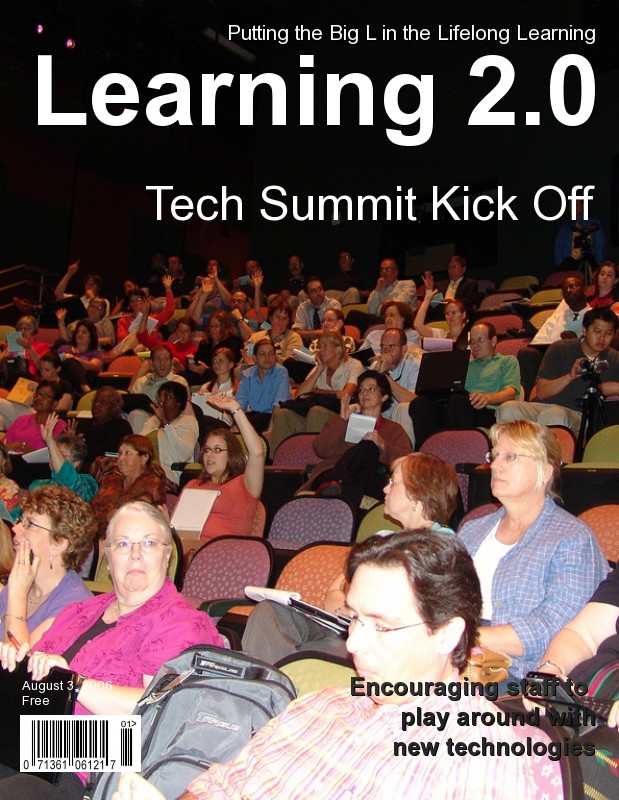

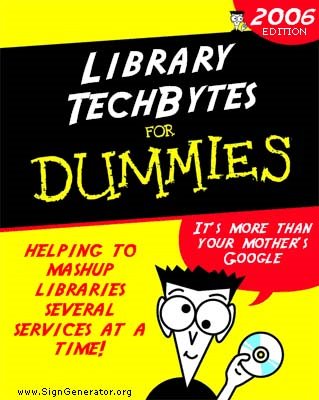
This discovery exercise is a playful one. Find a few image or text generators to play around with and write a post in your blog about one of them and display the result. Often adding the image you mocked up to your blog is as simple as copying and pasting code that the page provides. If not, you may just need to right click on the image and then save it to your hard drive before using Blogger’s image button to add it to your post.
If you’re having difficulty getting your image added to a post in your blog, ask a co-worker for help. In looking at several staff blogs, it’s easy to see that we have lots of people in the system who have figured out how easy it is to add images to their blogs.
Discovery Resources:
The Generator Blog
Letter James
FD Toys
Also try searching for online generators, text generators or image generators!
Discovery Exercise:
1. Play around with some image generators and find one that you like.
2. Post the result of your discovery process in your blog.
Note: Be sure to include a link to the image generator itself, so other participants can discover it too.
So take some time and have fun with this exercise. And remember to be tasteful too!
* Images created with Dummies Book Generator, FD Toys Magazine Cover, Comic Strip Generator.
Subscribe to:
Posts (Atom)

